
Animated GIFs are made up of multiple individual images played in sequence. If you've ever wanted to save a specific moment from a GIF, edit a single frame, or analyze an animation step-by-step, you'll need to extract its frames.
The good news? You don't need to install heavy software. You can extract frames from a GIF online in just a few clicks.
This guide explains how it works, when you might need it, and how to do it quickly without losing quality.
What Does It Mean to Extract Frames from a GIF?
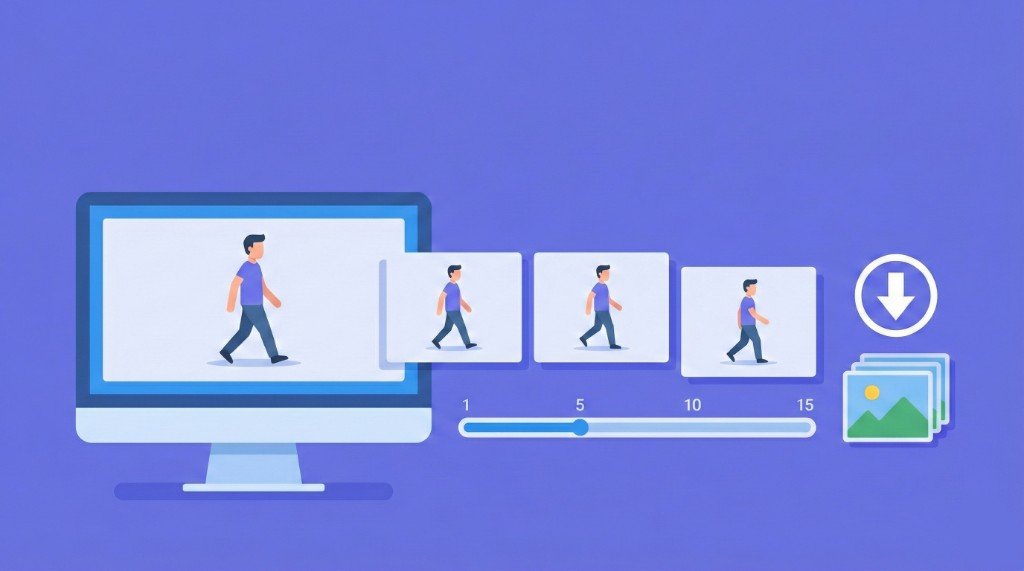
A GIF animation is not a video file. It's a sequence of still images displayed rapidly to create motion.
Each of those still images is called a frame.
When you extract frames from a GIF, you are separating that animation into individual image files (usually PNG or JPG format).
Why You Might Need to Extract GIF Frames
There are many practical reasons to split a GIF into images:
- Save a specific frame as a thumbnail
- Edit one frame in Photoshop or another editor
- Study animation timing
- Convert a GIF into PNG sequence
- Create static images for social media
- Remove unwanted parts of an animation
Instead of screenshotting and losing quality, extracting frames keeps the original resolution intact.
How to Extract Frames from a GIF Online (Step-by-Step)
Here's the simplest method using an online GIF frame extractor.
Step 1: Upload Your GIF
Open a GIF frame extraction tool in your browser. Upload the GIF file from your device.
Most online tools support drag-and-drop upload.
Step 2: Let the Tool Process the GIF
Once uploaded, the tool automatically:
- Detects all frames
- Separates them individually
- Displays them in order
This usually takes just a few seconds, even for longer GIFs.
Step 3: Preview the Frames
You'll typically see:
- A grid of frames
- Frame numbers
- Playback preview
- Frame delay timing
This allows you to identify the exact frame you want.
Step 4: Download Frames
Most tools give you two options:
- Download individual frames
- Download all frames as a ZIP file
Choose PNG if you want transparency preserved. Choose JPG if file size matters more than transparency.
Common Problems and How to Fix Them
GIF Is Too Large to Upload
Some online tools limit file size. If your GIF is large:
- Compress the GIF first
- Trim the animation length
- Reduce resolution before uploading
Extracted Frames Look Blurry
If frames appear blurry:
- Make sure you are not resizing the output
- Download in original resolution
- Avoid saving as low-quality JPG
GIF files themselves may already have limited color depth (256 colors max), which can affect appearance.
Transparency Is Lost
GIF supports transparency, but JPG does not. If transparency matters (like logos or overlays), export frames as PNG.
Too Many Frames in Long GIFs
Long animations may contain hundreds of frames. If you only need one moment:
- Use the frame preview
- Download only the specific frame instead of all
Online Tools vs Desktop Software
When Online Tools Are Better
- You don't want to install software
- You need a quick solution
- You're using a shared or work computer
- You only extract frames occasionally
When Desktop Software Makes Sense
- You edit GIFs frequently
- You need batch processing
- You work with very large files
- You require advanced editing features
For most users, online tools are more than enough.
Does Extracting Frames Reduce Quality?
No. Extracting frames does not reduce quality.
Each frame is already part of the original GIF. When extracted properly, you get the same resolution and color depth stored inside the file.
Quality loss only happens if:
- You compress the output
- You resize images
- You convert to low-quality formats
Frequently Asked Questions
Can I extract frames from a GIF for free?
Yes. Many online tools allow you to upload a GIF and download individual frames without cost.
What format are GIF frames saved in?
Most tools export frames as PNG or JPG. PNG is recommended if you want better quality or transparency.
Can I extract just one frame instead of all?
Yes. Most frame extractors allow you to select and download a specific frame.
How many frames does a GIF usually have?
It depends on the animation length and frame rate. Short GIFs may have 5–20 frames, while longer animations can have hundreds.
Is extracting frames the same as converting GIF to video?
No. Extracting frames separates images. Converting to video changes the file format into MP4 or another video format.
Final Thoughts
Extracting frames from a GIF online is simple and fast. You don't need editing software or technical skills. Just upload your GIF, preview the frames, and download what you need.
Whether you're creating thumbnails, editing images, or studying animation timing, splitting a GIF into frames gives you full control over every moment of the animation.